📝 Lessons
Lessons happen live online at the same time each week. Here's how to join and what to do when plans change.
Joining a lesson
Press Join Lesson on your Home page, open the lesson in Lesson Schedule, or use the link in your lesson email. Each one opens your tutor's video call.
Your lesson schedule
Lesson Schedule shows every lesson on a calendar, in your own time zone, colour-coded by status:
- Blue, Scheduled: coming up
- Green, Complete: finished, with a lesson report
- Red, Unconfirmed: finished, waiting for your tutor to confirm it
- Yellow, Incomplete: cancelled or moved
Moving a lesson
Need to move a lesson? Message your tutor at least 24 hours before and they'll find another time, ideally in the same week. Moving a lesson keeps your child's momentum going, so it's always better than cancelling.
Cancellation policy
- Lessons cancelled with less than 24 hours' notice, or missed without notice, may be charged for 30 minutes.
- If your tutor can't make a lesson, you won't be charged and they'll arrange a make-up lesson.
School holidays
Holidays are a great time to catch up or get ahead before the new term, so many families keep lessons going. If you'd like a break, let your tutor know your dates.
Common questions
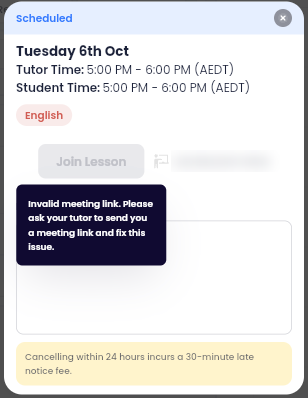
I pressed Join Lesson, but it says the meeting link is invalid
Your tutor's video link needs updating. Message your tutor straight away so they can send you a working link and fix it. If you can't reach them, contact your Account Manager.
My child is sick. What should I do?
Message your tutor as early as you can. They'll find another time, ideally in the same week.
I'm not getting lesson emails
Check your junk folder first. If they're not there, let your Account Manager know and they'll check your email settings.